
Use the SERP Tab to Analyze Top Content
When you run a search query in Frase, the SERP (Search Engine Results Page) tab becomes a powerful research companion. It lives on the right side of your screen and surfaces rich content, insights, and tools to help you analyze what’s already ranking—and guide your strategy from there.
📖 This article breaks down how the SERP tab is structured and what each section is designed to help you do.
In this article
Explore the People Also Ask Section
At the very top of the SERP tab, you’ll find the People Also Ask questions—pulled straight from Google. These questions give you a quick pulse on what users are really trying to learn. Click to copy any of them into your editor as inspiration for headings or talking points.
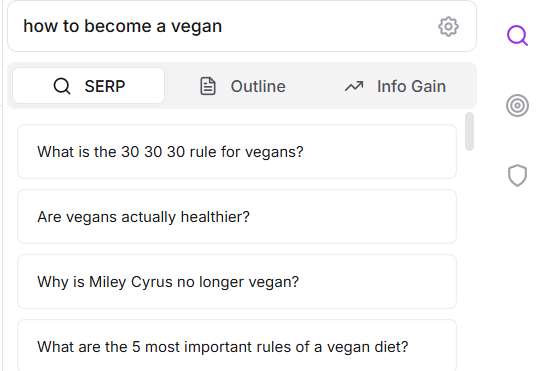
💡 This is a great way to align your content with real user curiosity.
Use SERP Shortcuts to Power Your Workflow
Right below the People Also Ask section, you’ll see a set of buttons & icons that sit just above the search result content and header structures. These buttons give you control over how you analyze, summarize, and customize your research.

Generate Content Brief
Click the Generate Content Brief button to auto-create a summary of the top content for your keyword. It’s a fast way to get a draft brief built out using competitive insights. You can always edit or expand on it manually.
SERP Metrics
Click the SERP Metrics button to open a visual breakdown of key ranking metrics across all results. You’ll see a bar graph showing:
- Metrics per individual result
- Minimum, maximum, and average values across the whole SERP
This data can also be exported as a CSV or Excel file, making it easy to reference or share with your team.
Customize Results
Want more control over which results influence your research? Click the Customize Results button to:
- Deselect results you don’t want included
- Add or import your own URLs to analyze
💡 This helps you tune the SERP data to match your unique content strategy—especially helpful if you're working with niche or industry-specific sources.
Build Your Outline
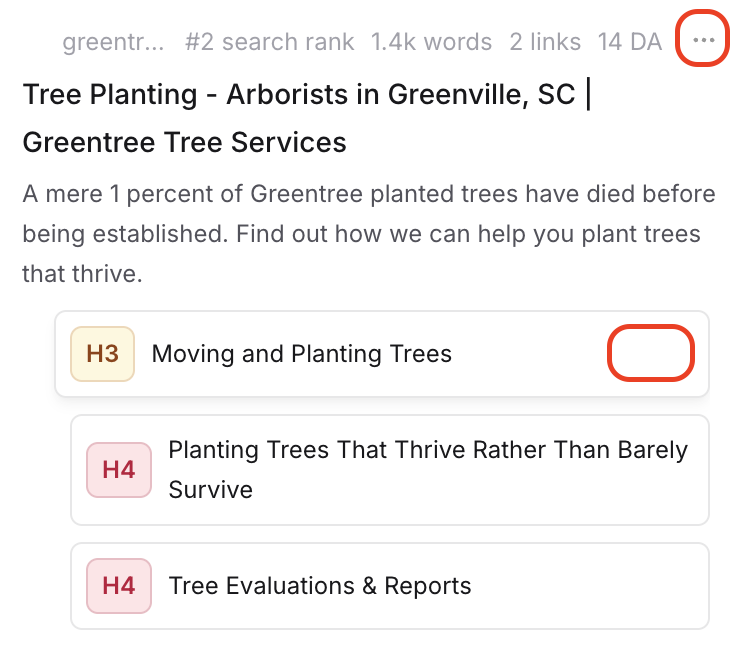
When you're viewing a source in the SERP tab, use the three dots at the top of each individual source or next to each individual heading to add those headings directly into your document or to your outline.
📖 For a full rundown of how to build outlines with ease using Frase, check out this resource.